Set up your surround output
Every plugin is mono-in, multi-out. Pick the output layout your rig and DAW support — quad, the 8-speaker ring, or a Dolby Atmos bed — and route it with one of the recipes below.
| Output layout | Ch | Reaper | Logic Pro | Pro Tools | Ableton Live | Standalone | GarageBand |
|---|---|---|---|---|---|---|---|
| Quad (4.0) | 4 | ✓ | ✓ | ✓ | ✓ | ✓ | — |
| Discrete 8-ring | 8 | ✓ | — | — | ✓ | ✓ | — |
| Dolby Atmos 7.1.2 | 10 | — | ✓ | ✓ | — | ✓ | — |
| Dolby Atmos 7.1.4 | 12 | ✓ | — | ✓ | — | ✓ | — |
- Reaper reaches quad, the discrete ring and 7.1.4 (it negotiates 4/8/12-channel tracks; quad needs the AU version; use 7.1.4 for Atmos).
- Logic Pro routes named beds only — quad and the 7.1.2 Atmos bed (no raw 8-channel ring).
- Pro Tools likewise routes named stems only — quad and the 7.1.2 / 7.1.4 Atmos beds (no raw 8-channel ring; plugins v0.1.57+).
- Ableton Live has stereo-only tracks, so it routes via stereo output pairs — four Ring pairs for the 8-ring (v0.1.56+), or two Quad pairs for a 4-speaker rig (v0.1.58+; recipe below). The Atmos beds aren't available there.
- GarageBand is stereo-only — no surround bus; the plugins run there only as a plain stereo effect. Use Logic Pro for surround.
- Stereo: the AU and Standalone (and both formats in Live) also run as a plain 2-channel effect — the ring folds down to L/R panning. For a real impression on headphones, monitor a surround layout through a binaural renderer.
Reaper
Quad · 8-ring · 7.1.4- Insert the plugin on a track and feed it a mono source.
- Open the track's Routing and set Track Channels to 4 (quad — AU only, see note), 8 (discrete ring) or 12 (7.1.4 Atmos bed).
- Route the channels to your speakers. The discrete-8 order is rotational — FC, FL, L, SL, BC, SR, R, FR (0–315°, counter-clockwise). Quad order is FL, FR, RL, RR (45° / 315° / 135° / 225°).
For quad, insert the AU version — Reaper's VST3 host keeps the plugin in the full-ring layout, and a 4-channel track just truncates it to the first four ring channels (the motion seems stuck between 0° and 135°). On an 8-speaker ring rig, the quad corners are ring speakers 2, 8, 4, 6 — route quad channels 1→2, 2→8, 3→4, 4→6. For an Atmos session use the 12-channel 7.1.4 bed (the VST3 doesn't expose the 10-channel 7.1.2).
Logic Pro
Quad · 7.1.2 Atmos- For Atmos: Project Settings ▸ Audio ▸ Spatial Audio = Dolby Atmos (this sets the surround format to 7.1.2).
- Use a mono audio track and set its Output to Surround (7.1.2) — or to Quadraphonic for a 4-speaker rig.
- Insert from Audio Units ▸ Rhythm Surround; it loads as Mono → Surround / Quadraphonic. Monitor on headphones via the Dolby Atmos binaural renderer.
Logic only routes named surround beds, so it can't do a raw 8-channel ring — use Reaper, Ableton Live or the Standalone for the discrete ring.
Pro Tools
Quad · 7.1.2 / 7.1.4 Atmos- Install with the Pro Tools (AAX) option selected (on by default), then start Pro Tools — it scans new plug-ins at launch.
- Make sure Setup ▸ I/O ▸ Output has a path of the width you want — Quad or a 7.1.2 / 7.1.4 bed — then insert on a mono track from multichannel plug-in ▸ SoundField (it comes up as mono → Quad / 7.1.4).
- Set the track's Output to that path. Pro Tools labels the channels by role (L, R, Ls, Rs for quad — matching the plugin's FL / FR / RL / RR), so no remapping is needed.
Plugins v0.1.57+, signed with Avid/PACE code signing — no iLok needed, there's nothing to activate. Surround sessions need Pro Tools Studio or Ultimate. Like Logic, Pro Tools routes named stems only — no raw 8-channel ring (the Atmos beds' height and LFE channels stay silent; the motion is horizontal). If the output selector shows path n/a, the session's I/O setup is missing a path of that width.
Ableton Live
Stereo insert · Quad · 8-ring via pairs- In Preferences ▸ Audio pick your multichannel interface and enable outputs 1–8 (four stereo pairs) in Output Config. Insert the plugin on your source track and set that track's Audio To to Sends Only.
- Create four audio tracks. On each, set Audio From to the plugin's track and the channel chooser below it to one of the plugin's Ring pairs — Ring 1-2 / 3-4 / 5-6 / 7-8 — and set Monitor = In.
- Route them to Ext. Out 1/2, 3/4, 5/6, 7/8 and play. The pairs carry the ring in order — 1-2 = FC+FL, 3-4 = L+SL, 5-6 = BC+SR, 7-8 = R+FR — so the motion travels the room exactly as in Reaper.
- Only four corner speakers? Use the two Quad pairs instead (v0.1.58+) — the same recipe with just two tap tracks (and only outputs 1–4 needed in step 1): Quad 1-2 (FL/FR) → Ext. Out 1/2 and Quad 3-4 (RL/RR) → 3/4. They carry a true four-corner quad render (±45° front, ±135° rear), so nothing is lost to untapped ring positions.
Live's tracks are stereo-only, so the plugins present themselves differently here (plugin v0.1.56+): a stereo Main Mix — dropped on a track with no routing at all, they just work as a stereo insert (the ring folds down to L/R panning) — plus the four Ring pairs above for the real ring and, from v0.1.58, the two Quad pairs for a 4-speaker rig (tap the Ring pairs or the Quad pairs for your rig, never both to the same speakers — each set is a complete render). Keep the plugin track on Sends Only: the Main Mix folds down the whole ring and would smear the image if it also reached your speakers. Tested on Live 12.4 — any edition works (no Max for Live needed). The AUs are Audio Units v2 — enable that in Preferences ▸ Plug-Ins and Option-click Rescan; on Windows use the VST3, which exposes the same pairs. The Atmos beds aren't reachable in Live.
Standalone app
Any layout your device offers- Launch the Standalone app for the effect — no DAW required.
- In Audio/MIDI Settings pick a multichannel output device: a 4-channel device gives quad, 8-channel the ring, and so on.
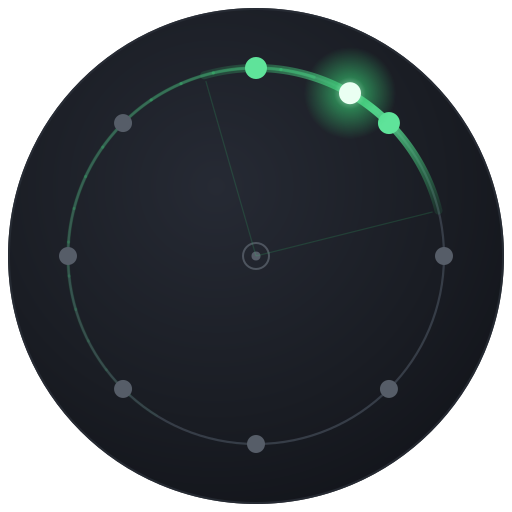
- Feed it one (mono) input channel and play. The on-screen ring display shows the live position and width.
The most reliable way, alongside Reaper, to do an exact per-speaker check of a true 8-speaker ring.
Windows (VST3)
Reaper · Cubase · Live & more- Download the Windows beta .zip. If Windows flags it, right-click the zip ▸ Properties ▸ Unblock ▸ OK (or extract with 7-Zip), then extract.
- Copy the ten .vst3 folders into your VST3 folder — %LOCALAPPDATA%\Programs\Common\VST3 (no admin) or C:\Program Files\Common Files\VST3 (all users).
- Rescan VST3 in your DAW, add a plugin to a mono track routed to a multichannel output, then paste your beta key into the plugin to activate it.
Same plugins as macOS — the 8-ring and 7.1.4 outputs work identically, so follow the Reaper recipe above for channel routing. (In Reaper, quad needs the AU version, which is macOS-only — on Windows use an 8- or 12-channel track there instead; in Ableton Live the VST3 reaches quad via the two Quad pairs, v0.1.58+ — see the Live recipe above.) There's no install warning when your DAW loads the plugin; full steps are in the README inside the zip.
Ready to try it?
Join the free beta — a macOS installer or a Windows VST3 zip, plus a license key.
Get the free beta →